Zotero software :
Zotero is an open source reference management software for managing bibliographic data and research materials. Developed by the Center for History and New Media at George Mason University in the United States, the software’s name is taken from an Albanian word meaning ‘to seize’. Zotero is an extension for the Firefox web browser. It runs under a separate interface within Firefox, so it is completely separate from the web pages running in the browser. Zotero is specifically designed to store, manage, and cite bibliographic references. Each reference in Zotero is treated as a separate item. Its main features include integration with web browsers, in-text citations, footnotes, and bibliographies, and integration with Microsoft Word, LibreOffice, OpenOffice.org Writer, and NeoOffice. It can be installed on your computer by following a few simple steps from the Zotero website (www.zotero.org).
Various features of the Zotero software
The various features of Zotero software are discussed below:
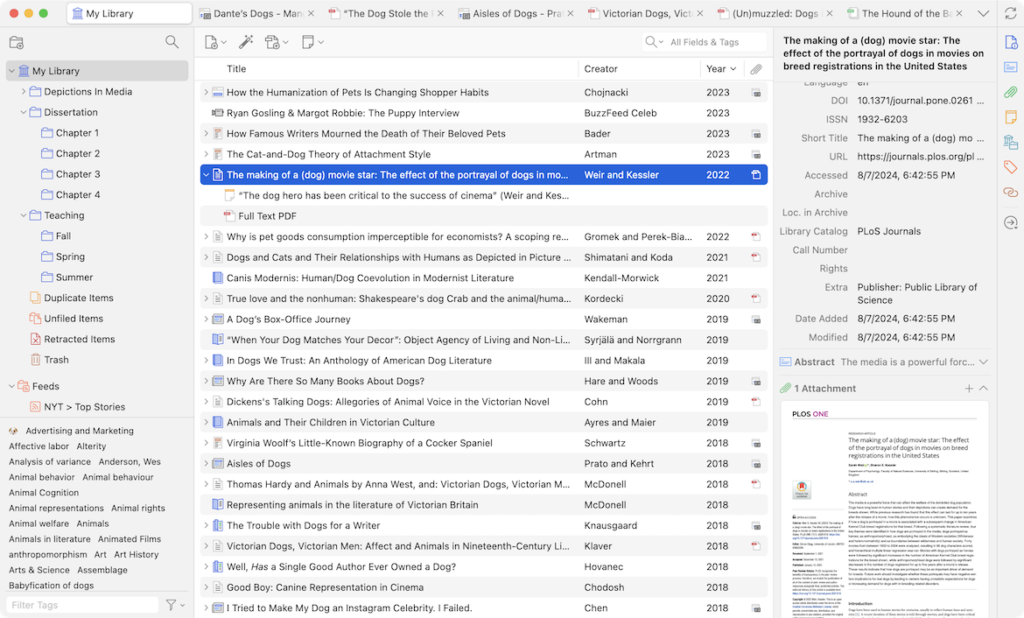
- Supported content and metadata: Using Zotero, it is possible to reference various types of content including books, articles, web pages, paintings, films, sound recordings, case studies, etc. Each aggregate type has the ability to use different types of metadata (author, publisher, each bibliographic item). The Jotero interface displays the items in the middle column and their metadata in the right column. These include title, creator, publisher, date, etc.
- Collection Organization: The left-hand column of the Zotero interface contains My Library, where all the content is locked. Above ‘My Library’ is a button that allows you to create new collections, which are collections of all the individual folders related to various subjects or works.
- Tags: Each item can be assigned a variety of tags or identifiers. The tags are named by the user. There is no limit to the number of tags. The ‘Tags Sector’ at the bottom of the left-hand column of the Jotero interface allows you to add or remove tags. Adding or removing tags can also be done through the ‘Tags’ tab in the right-hand column.Up to six tags can be assigned colors and numbers. These can be quickly added or removed using the number keys on the computer keyboard.
- Search: For quick searches, Zotero has a ‘Quick Search’ feature. With this, it is possible to search by metadata, tags or content from the Zotero toolbar. To the left of the search box, there is a ‘spy glass’ icon. Clicking on it will open a window for advanced search. It can be used to introduce complex and narrow searches. The advanced search pane can be saved in the left column.
- Attachments: Each item can have annotations, related files or links. Zotero has the facility to attach these annotations, files or links. These attachments are displayed in the middle of the Zotero interface under the related item name. There is a facility to display the attachments by clicking on the arrow or plus sign next to each item. Note, Zotero can attach files in various formats, including PDF.
- Overall Acceptance: It is possible to create new content in Zotero by accepting various information from the interface. The ‘Save’ icon displayed in the toolbar or address bar of the web browser means that Zotero can automatically create an overall and fill in its metadata fields. The full text PDF file is usually automatically ‘attached’ to the content by the user. It is possible to attach the necessary links or supplementary data files when retrieving from some websites.
- Translator: Zotero uses a type of code called a ‘translator’. This translator is used to identify information on a webpage. Translators can be of various types. There are some generic translators that can work on many different types of websites. Then there are specialized translators created for specific sites. If you cannot get a specific translator for a site, you can request one from the Zotero user forum.
- Add Item by Identifier: Zotero can automatically add content using ISBN, digital object identifier (DOI), etc. This can be done by entering the content identifier number after clicking the Add Content button using an idea button on the Zotero toolbar. Additionally, content can also be added manually by clicking the ‘New Button’ button on the Jotera toolbar.
- Citing Items: Zotero’s Size Station Style Language or ‘CSL’ allows you to create citations following a variety of referencing styles. Zotero supports all major citation styles, such as APA, MLA, Chicago, Vancouver, etc. Zotero also supports specific styles followed by all renowned journals.
- Word Processor Integration: Zotero has separate plug-ins for MS Word and Open Office, which allow you to insert citations directly from your word processing software. This makes it easy to insert citations from multiple pages or sources. With the help of Jothero, it is possible to create Intex citations, footnotes, and endnotes quickly and easily.
- Automatic bibliography creation: Using Zotero’s word processor plug-in, it is possible to transfer the entire citations of a document from one system to another. In addition, a bibliography can be automatically created from all the citations in a document. In addition, citations and bibliographies can be created manually by entering information into text fields. It is also possible to send or export citations directly to a file.
- Synchronization: Zotero can be used on multiple computers using the ‘syncing’ feature of Zotero. Library materials can be synchronized with each other and updated through the Zotero server with unlimited storage facilities. The materials that have been synchronized on the Zotero server can be viewed using the user’s ‘www .zotero .org’ account. Zotero users can create their own groups together. Research materials and sources can be managed online and in groups using the Zotero client program through the Group Library.
Conclusion of Zotero software :
Overall, Zotero is a powerful and user-friendly open-source reference management tool that supports the entire research workflow—from collecting sources to generating citations and bibliographies. Its features such as metadata management, tagging, advanced search, word processor integration, and synchronization make it highly effective for students, researchers, and academics. By combining flexibility, collaboration, and automation, Zotero significantly improves accuracy, efficiency, and organization in scholarly research.